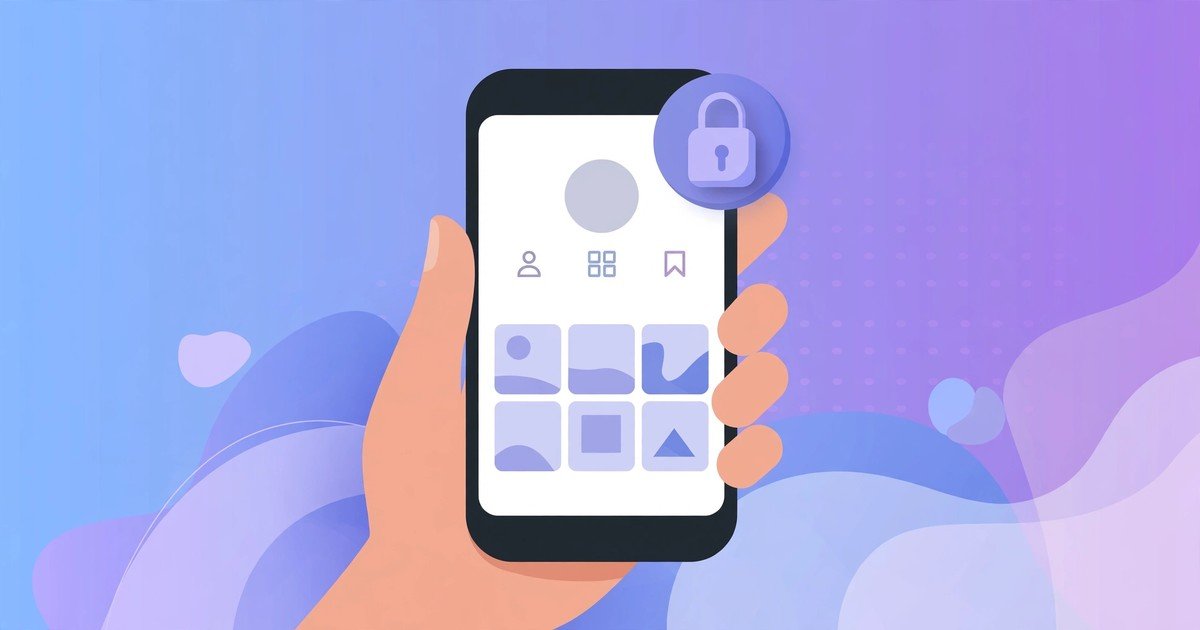
Want only people you approve to see your Instagram posts? Making your account private on iPhone takes less than a minute. Once you switch, only your approved followers can see your photos, videos and stories. Everyone else sees a locked profile and a Follow button.
This guide shows you the exact steps, explains what changes and what stays visible, and covers the extra privacy settings worth turning on afterwards.
Switch to Private in Under a Minute
Open the Instagram app on your iPhone and tap your profile picture in the bottom right corner. Tap the three lines in the top right corner, then tap Settings and privacy. Scroll down to the “Who can see your content” section and tap Account privacy. Switch on the Private account toggle. Instagram asks you to confirm. Tap Switch to private, and you are done.
If your account is currently public, the change takes effect at once. Your existing followers stay. Nobody is removed. People who do not follow you lose access to your posts straight away.
One thing to note: anyone who already follows you keeps seeing your content. If there is someone you would rather not have as a follower, remove them from your followers list after switching. Go to your profile, tap Followers, find the person and tap Remove.
What Changes and What Stays Visible
A private account changes who can see your content, not how Instagram itself works. Here is what changes:
- Only approved followers can see your posts, reels and stories.
- People who do not follow you see only your profile picture, bio and follower counts.
- New follow requests land in your inbox for approval. You can accept or decline each one.
- Your posts stop appearing on hashtag pages and the Explore page for non-followers.
And here is what stays visible to everyone:
- Your profile picture, username and bio.
- Your follower and following counts.
- Any comments you leave on public posts, along with your username.
- Direct messages you send still reach the people you send them to.
Also remember that followers can still screenshot your posts or share them elsewhere. Privacy settings limit the audience inside Instagram. They cannot control what an approved follower does with a screenshot.
Private vs Business Accounts
You cannot have a private business account. Instagram requires business and creator accounts to stay public. If your account is currently set to business or creator, you must switch it back to a personal account before the private toggle becomes available.
To do that, go to Settings and privacy, tap Account type and tools, then tap Switch to personal account. You will lose access to business insights and promoted post tools, but you gain the private setting.
Which one should you pick? If you run a shop, a brand or a public page, stay public and manage privacy in other ways, such as hiding your story from specific people. If the account is personal and you only want friends and family to see it, a private personal account is the right choice.
If you ever suspect someone has taken over your account, act fast. Our guide on how to recover a hacked Instagram account walks through the exact recovery steps.
Extra Privacy Steps Worth Taking
Going private is the biggest single step, but a few more settings tighten things up nicely.
Hide your story from specific people. In Settings and privacy, tap Hide story and live from, then pick anyone you want to exclude. They stay as followers but never see your stories.
Turn off activity status. In Settings and privacy, tap Messages and story replies, then Activity status, and switch it off. People will no longer see when you were last active.
Review your tagged posts. Under Settings and privacy, tap Tags and mentions. Set “Allow tags from” to People you follow, so strangers cannot tag you in their posts.
Limit story replies. In the same Messages and story replies section, set “Allow message replies” to Followers you follow back. This cuts down on unwanted replies from strangers.
Check your followers list. Every few months, scroll through your followers and remove anyone you no longer recognise. A private account is only as private as its follower list.
If unwanted contact is a problem on other apps too, you may find our guide on how to block someone on TikTok useful for cleaning up your social feeds.
FAQs
Can I switch my Instagram account back to public later?
Yes. Follow the same steps and switch the Private account toggle off. Your posts become visible to everyone again at once. There is no waiting period and no limit on how often you can switch.
Do my existing followers get notified when I go private?
No. Instagram does not notify your followers. They simply keep seeing your content as before. Only people who do not follow you notice the change, because your posts disappear from their view.
Can non-followers still send me follow requests?
Yes. Anyone can send a follow request to a private account. You see each request in your notifications and can accept or decline it. Declined requests are not notified to the sender.
Does going private hide my account from search?
No. People can still find your profile by searching your username. They just cannot see your posts until you approve their follow request. Your profile picture, bio and counts stay public.
Conclusion
Making your Instagram account private on iPhone is a quick change with a big effect. Your posts, reels and stories become visible only to people you approve. Take a minute to review your followers list and the extra settings above, and your account will be as private as Instagram allows.