
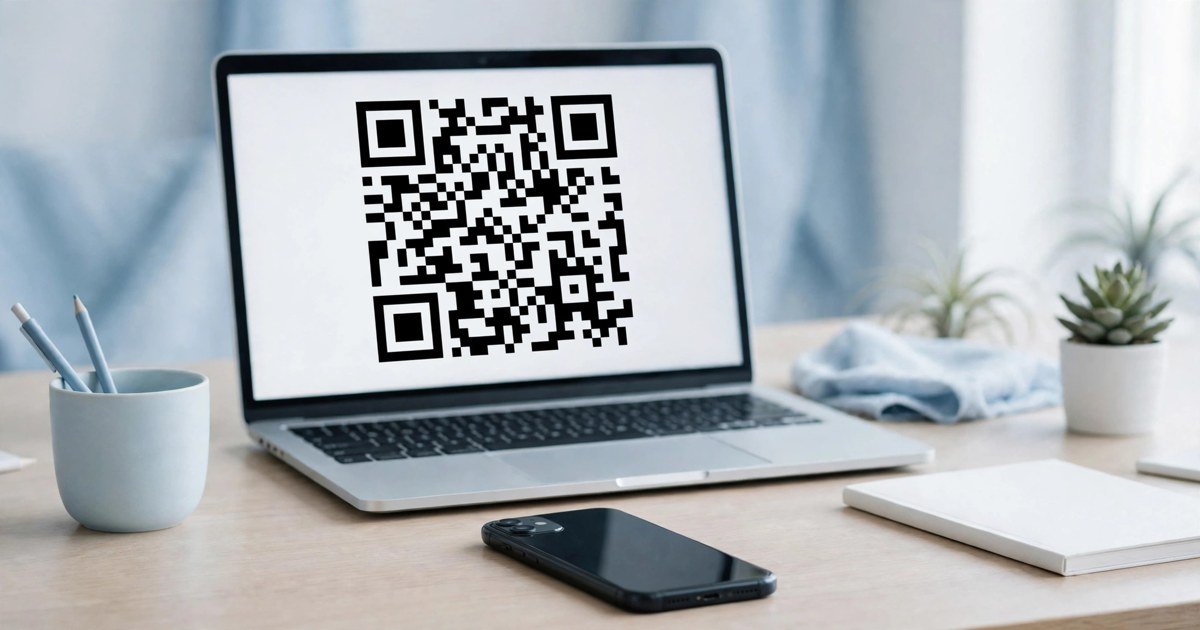
You can make a QR code for free in under a minute, with no account, no email address and no payment. Open a free generator, paste your link, download the image, and you are done. The only decision that matters is one most guides skip: pick static or dynamic before you generate. Get that wrong and a printed code can turn useless.
A QR code is a square pattern that a phone camera reads as a link, a WiFi password, a contact card or a short message. This guide shows you how to make one for free without signing up, which tools genuinely need no account, and how to print it so it scans first time.
Static vs Dynamic: Pick Before You Generate
Every free generator makes static codes by default. A static QR code stores the destination inside the pattern itself. There is no server in the loop, so the code never expires, never stops working and costs nothing. The trade off is that you cannot change where it points after you print it, and you cannot count scans.
A dynamic QR code works differently. The pattern points to a short redirect link held by the generator’s service. You can change the destination later without reprinting, and you can usually track how many times it was scanned. The catch is that dynamic codes almost always need an account and a paid plan. Stop paying and the code can stop working, because the redirect lives on the provider’s server.
| Feature | Static QR code (free) | Dynamic QR code (usually paid) |
|---|---|---|
| Price | Free, forever | Monthly subscription |
| Change destination after printing | No | Yes |
| Scan tracking | No | Yes |
| Expires | Never | Yes, if you stop paying |
| Signup needed | No | Almost always |
| Works offline | Yes, for WiFi, text and contact codes | No, needs the internet |
Choose static when the destination will never change. A WiFi password on a card by the front door, a link to a homepage you control, a business card you will not update. Choose dynamic only when you need to edit the destination after printing, count scans, or you are printing thousands of copies and cannot afford to reprint. For most people, most of the time, static is the right answer.
One smart trick if you think a link might change later: point the static code at a page on your own website that you can update, instead of at a page you do not control. The code stays valid forever, and you change the content behind it.
How to Make a QR Code for Free in 3 Steps
Here is the full process using QRCode Monkey, the longest running free static generator. The same steps work on almost any no signup tool.
Step 1: Pick what the code should do
Open the generator and choose the content type. The common choices are a website URL, WiFi login, plain text, a contact card, an email address or a phone number. For a website, paste the full link starting with https://. For WiFi, enter the network name, password and security type exactly as they appear on your router.
Step 2: Customise the design (optional)
You can change the colours, pick a shape for the squares and add a logo in the centre. Keep the contrast high. Dark squares on a light background scan best. Avoid light colours on dark backgrounds, and never cover more than about a third of the centre with a logo, or phones will struggle to read it. The default black and white design scans most reliably, so only customise if the code is going on something public.
Step 3: Generate and download
Click Create QR Code, then download the result. For a screen, a PNG is fine. For print, download the SVG or the highest resolution PNG on offer, ideally 2048 pixels or more. A small, low resolution image looks blurry in print and may not scan. That is it. No signup, no watermark and no account needed.
Free Options That Need No Account
Not every tool that calls itself free is genuinely free. Some ask for an email at download, some watermark the code, and some quietly create dynamic codes that expire after a trial. These options let you download a static code with no account at all.
QRCode Monkey
QRCode Monkey is the best all round free static generator. There is no signup, no watermark and no scan limit. You can export in PNG, SVG, PDF and EPS, including true vector formats, which matter when artwork goes to a printer. It offers 14 content types, including WiFi, a contact card, a map pin and a calendar entry. The honest catch is that it is static only. Once a code is created you cannot edit it, and there is no scan data. The site states its free static codes do not expire and will work forever, and they are cleared for commercial use.
The QR Code Generator
The QR Code Generator offers unlimited static codes with no login, across ten content types: a web address, a document, a multi-link code, a contact card, plain text, an app listing, an SMS, an email, a phone number and a social profile. It also offers two editable codes that its own page says never expire, though the free version adds a watermark to those. The one gap is that it has no WiFi option at all, so skip it if the code is for your guest network.
Chrome’s built in generator
If you only need a code for a web page you already have open, you do not need a website at all. In Chrome, right click anywhere on the page and choose “Create QR code for this page”. Chrome draws a static code for the current URL, and you can download it as a PNG. It is free, instant and needs no account. Edge has the same feature. The code is plain black and white with no design options, but for a quick share it is the fastest option there is.
QRStuff
QRStuff is a workhorse for static codes across lots of content types, including URL, text, contact and WiFi. Its static codes are free, permanent, never expire, have no creation limit and are cleared for commercial use. To download one without an account, switch off the “Update Later” option, which is the dynamic upgrade. Its free tier also includes dynamic codes, but those expire after 30 days, so do not print them on anything permanent.
A word of warning about the “free” label in general: always check what happens after you print. A code that depends on a provider’s server can stop working if the trial ends, the plan lapses or you hit a monthly scan cap. A static code cannot stop working, because your link is in the pattern itself and there is nothing for the generator to switch off.
What Kind of QR Code Should You Make?
The type you pick depends on what the code is for. Here are the most common uses and the best choice for each.
A website link. Use a static code from QRCode Monkey or Chrome’s built in tool. Point it at a page you control so you can update the content behind it later.
WiFi login. Use a static code with the WiFi content type. Guests scan it and join without typing a long password. Print it on a card and leave it where visitors can see it. QRCode Monkey and QRStuff both offer this type.
A business card. Use a vCard code with your name, phone number and email. Static is fine, because your contact details rarely change. If they do change often, consider a dynamic code instead.
A restaurant menu or event flyer. Static works if the menu or event page URL is stable. If the menu changes every week, point the code at a page you update, or pay for a dynamic code.
Plain text. A short message, a joke on a t-shirt, a serial number on equipment. Static is perfect, because text never needs editing.
Print and Sharing Tips
A QR code that looks fine on screen can fail in print. Follow these rules and it will scan first time.
Print it big enough. As a rule of thumb, a code should be at least 2 cm across for every metre of scanning distance. A code on a business card can be small. A code on a poster that people scan from across a room needs to be much bigger.
Use a high resolution file. For print, download the SVG, or the largest PNG available. A 300 pixel image stretched across a flyer will blur, and a blurry code does not scan.
Keep the quiet zone. Every QR code needs a clear white border around it, called the quiet zone. Do not let text, logos or background patterns crowd the edges, or scanners will fail to find the code.
Test before you print in bulk. Print one copy, then scan it with two different phones, one iPhone and one Android if you can. Check that it opens the right page, joins the right network or shows the right contact. Testing one copy is cheap. Reprinting a thousand flyers is not.
Check the surface. Glossy paper, curved bottles and reflective windows can all defeat a phone camera. Test the code on the real surface, in real light, before you commit.
Watch Out for QR Code Scams
QR codes are convenient, and scammers know it. A fake code stuck over a real one on a parking meter, a restaurant table or a parcel notice can send you to a phishing site that steals your login or payment details. This trick is called quishing, and it works because people scan codes without checking where they lead.
Before you scan a code in public, look at it. If it is a sticker placed over another code, or it looks tampered with, do not scan it. After scanning, check the address your phone shows before you tap through, and never enter a password or card details on a page you reached through a QR code you did not expect. If you want to learn the warning signs in more detail, read our guide on how to spot a phishing email, because the same tricks appear in both.
The same caution applies to the codes you create. Only link to pages you trust, and if you share a WiFi code in public, remember that anyone who scans it can join your network. Use a guest network for visitors, and keep your main network password private. A best free password manager can store long, random WiFi passwords so you never have to type them by hand.
FAQs
Do free QR codes expire?
Static QR codes never expire, because the information is stored in the pattern itself. Dynamic codes can stop working if the subscription behind them ends, so never print a dynamic code from a free trial on anything permanent.
Can I make a QR code without an app?
Yes. Every tool in this guide works in a web browser, and Chrome and Edge can generate a code for any open page with a right click. No app, no account and no install is needed.
Are free QR code generators safe?
For static codes, yes. The generator only draws a pattern from the text you paste, and nothing is stored on a server. Be careful with tools that ask you to create an account for a “free” code, because those are usually dynamic codes that can expire or be tracked.
Can I use a free QR code for my business?
Yes. QRCode Monkey and QRStuff both state their free static codes are cleared for commercial use, with no watermark. You can print them on menus, flyers, packaging and business cards.
Why will my QR code not scan?
The most common reasons are a low resolution image, poor contrast, a damaged quiet zone, or a code printed too small for the scanning distance. Re-download the code at a higher resolution, keep it black on white, leave a clear border, and test it on two phones before printing more.
Conclusion
Making a QR code for free without signing up takes less than a minute, and for most uses a static code is all you need. Decide static or dynamic first, then use a genuinely free tool like QRCode Monkey or Chrome’s built in generator, download a high resolution file, and test it before you print in bulk. A code that never expires and always scans is worth far more than a fancy one that stops working when a trial ends.