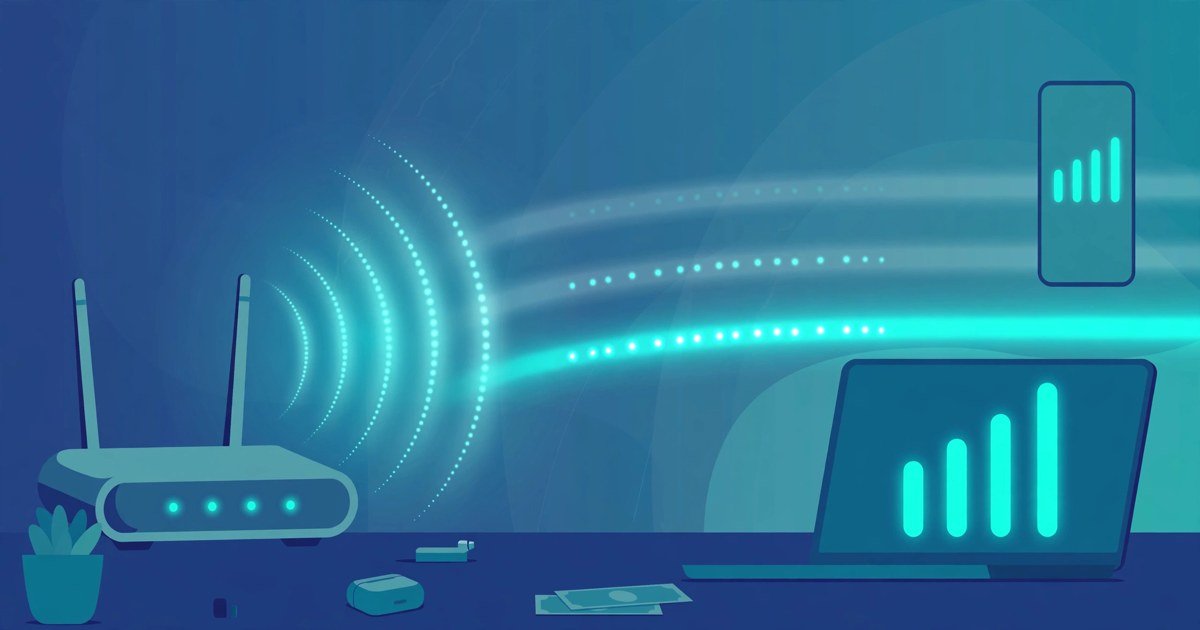
Yes, changing your WiFi channel can improve your speed, but only when interference is the real problem. If your neighbours’ routers are all shouting on the same channel as yours, your devices spend time waiting for a clear moment to talk. Moving to a quieter channel gives your WiFi a clearer path, and the fix takes about five minutes. This guide shows you how to find the quietest channel near you and change it in your router settings, on both the 2.4 GHz and 5 GHz bands.
Why Channels Get Crowded
Think of WiFi channels like lanes on a motorway. Your router broadcasts on one channel, and every nearby router does the same. When several networks share one channel, they take turns. That waiting slows everything down, especially at busy times like weekday evenings when everyone is streaming at once.
The 2.4 GHz band is the worst offender. In the UK it offers channels 1 to 13, but each WiFi signal is about 20 MHz wide while the channels sit only 5 MHz apart. That means most channels overlap each other. Only channels 1, 6 and 11 sit far enough apart not to interfere with each other. Every 2.4 GHz network in your street is therefore competing for just three usable lanes, and most routers ship with channel 6 as the default, so that lane is often the busiest of all.
The 5 GHz band is a different story. It has many more non-overlapping channels, so congestion is far less common. If your devices support 5 GHz, moving them there often helps more than any 2.4 GHz channel change. Other devices add to the noise too. Microwave ovens, Bluetooth gadgets and baby monitors all use the 2.4 GHz band, so even a neighbour-free channel can suffer interference in a busy home.
Before you change anything, check whether interference is actually your problem. If your WiFi is slow in one room but fine next to the router, distance and walls are more likely to blame. If it drops out entirely, read our guide on why WiFi keeps disconnecting on your laptop first. A channel change fixes interference, not weak signal and not a slow broadband plan.
Find the Quietest Channel Near You
Never guess. A free analyser app shows you exactly which channels your neighbours use and how strong their signals are. Pick the channel with the fewest competing networks, and pay attention to signal strength too. A weak neighbour on channel 1 matters far less than a strong one.
On Android, WiFi Analyzer by VREM is free and open source. Install it, open the channel graph, and switch between the 2.4 GHz and 5 GHz bands. The Channel Rating view gives every channel a star rating based on congestion, so you can see at a glance which of channels 1, 6 and 11 is quietest. WiFiman is another solid free option on Android.
On Windows, WiFi Analyzer is available free from the Microsoft Store, and NetSpot offers a free tier on Windows, macOS, Android and iOS with a clear channel overlap view. If you prefer the command line, open Command Prompt and run netsh wlan show networks mode=bssid to list nearby networks with their channels.
On a Mac, hold the Option key, click the WiFi icon, then open Wireless Diagnostics and choose Window, then Scan. iPhones cannot scan channels directly, so use an Android phone, a laptop, or your router’s own app instead.
For 2.4 GHz, only consider channels 1, 6 and 11. Pick whichever of the three has the fewest and weakest neighbours. Do not be tempted by channel 3 or 8 just because the graph looks empty there. Those channels overlap two neighbours at once, and that adjacent channel interference is worse than sharing one busy channel. For 5 GHz, any channel with little or no competing traffic works. Channels 36 to 48 are the safe default because they have no radar rules. Channels 149 to 165 are often cleaner in residential areas because most routers default to the lower range. Channels 52 to 144 use DFS, which means your router must vacate the channel if it detects radar, so avoid them if your devices disconnect often.
Change It in Your Router Settings
Once you know your target channel, the change itself is quick. The exact menus vary by brand, but the steps are the same on almost every router.
First, log in to your router’s admin page. Open a browser and go to 192.168.1.1 or 192.168.0.1. The correct address and the admin password are printed on a label on the router itself. On BT Hubs, Sky Broadband, Virgin Media and TalkTalk routers, the admin password is usually on that same sticker, and it is different from your WiFi password. If you have never changed it, you can also change your WiFi password while you are in there.
Next, find the wireless settings. Look for Wireless, WiFi Settings, Advanced Wireless or Radio. Many routers have separate settings for each band. If your router merges both bands under one network name, a feature called Smart Connect or band steering may hide the per-band channel setting until you turn it off.
Now set the channel. Find the Channel or Control Channel dropdown. It is probably set to Auto. Change it to the channel you picked from your scan. Set the 2.4 GHz channel to 1, 6 or 11, and set the channel width to 20 MHz. A 40 MHz width on 2.4 GHz uses two thirds of the whole band and makes interference worse for everyone. Set the 5 GHz channel to your chosen channel and the width to 80 MHz, which is the standard for WiFi 5 and WiFi 6.
Save or apply the change. Your router will briefly restart its WiFi radio, and your devices will disconnect for about 5 to 10 seconds, then reconnect automatically to the same network name. You do not need to re-enter the WiFi password on any device.
Finally, test the result. Run a speed test in the room where the problem was worst, and repeat it at the same time of day you normally notice the slowdown. If speeds did not improve, run the scan again. Your neighbours may have changed channels too, or a new network may have appeared. Try a different one of the three non-overlapping channels. If all three 2.4 GHz channels are crowded, the real fix is moving your devices to the 5 GHz band.
One exception: some mesh systems, such as Eero and Google Nest WiFi, do not let you change the channel at all. They pick channels automatically and hide the controls. If you own one of those, a manual channel change is not an option, and you should focus on router placement and the 5 GHz band instead.
2.4 GHz vs 5 GHz: Which to Use
The two bands suit different jobs, and picking the right one matters as much as picking the right channel.
| Band | Range | Speed | Congestion | Best for |
|---|---|---|---|---|
| 2.4 GHz | Longer, passes through walls better | Lower | High, only three usable channels | Smart home gadgets, older devices, garden coverage |
| 5 GHz | Shorter, weaker through walls | Higher | Low, many channels | Streaming, video calls, gaming, large downloads |
Use 5 GHz for anything that needs speed in the same room as the router, such as streaming, video calls and gaming. Use 2.4 GHz for devices that sit far from the router or behind thick walls, and for smart home gadgets that only support 2.4 GHz. Many routers offer both bands under one network name and steer devices automatically, but that steering is not always smart. If a laptop keeps clinging to slow 2.4 GHz in the same room as the router, split the bands into two network names and connect it to the 5 GHz one yourself.
Channel width matters too. On 2.4 GHz, stick to 20 MHz. On 5 GHz, 80 MHz is the sweet spot for most homes. The wider 160 MHz setting doubles the theoretical speed but needs a large clean block of spectrum, often includes DFS channels, and shrinks range, so leave it alone unless your scan shows a very quiet 5 GHz band.
When Changing the Channel Will Not Help
A channel change is a targeted fix, and it is worth knowing its limits before you spend an evening tweaking settings. It will not fix distance. If your router sits in a cupboard at one end of the house, no channel will push the signal through three walls. Move the router to a central, open spot, or add a mesh system or extender.
It will not fix a slow broadband plan either. If your plan delivers 30 Mbps, the fastest channel in the world will not give you 100 Mbps. Test with a wired connection first. If the wired speed matches your plan but WiFi is far slower, interference is a likely culprit and a channel change is worth trying.
It will not fix an old router. Routers older than about five years may lack 5 GHz entirely, and their radios may be too weak to make good use of a clear channel. If your router only offers 2.4 GHz, a newer dual band router will make a bigger difference than any channel setting.
Finally, Auto is a good default on modern routers. Many routers scan when they reboot and pick the least congested channel themselves, and some rescan regularly. Set a channel manually when Auto keeps landing on a crowded channel, when you see slowdowns at the same time every evening, or when you want to avoid DFS drops. If you set a manual channel, recheck it every few months, because your neighbours’ networks change.
Frequently Asked Questions
What is the best WiFi channel for 2.4 GHz?
Channel 1, 6 or 11, whichever has the fewest and weakest neighbouring networks. They are the only non-overlapping 2.4 GHz channels in the UK. Channel 6 is the most common default, so 1 or 11 is often quieter.
What is the best WiFi channel for 5 GHz?
Channels 36 to 48 are the safe default because they have no radar rules. Channels 149 to 165 are often cleaner in residential areas. Avoid DFS channels 52 to 144 if your devices disconnect often.
Does changing the WiFi channel increase speed?
Only if interference was the problem, which is common in flats and terraced streets. In a busy area, switching from a crowded channel 6 to a quiet channel 1 or 11 can improve real world speeds noticeably. It will not help with distance, thick walls or a slow broadband plan.
Should I leave my WiFi channel on Auto?
For most people, yes. Modern routers scan at boot and pick a reasonable channel. Switch to manual when Auto keeps picking a crowded channel or when your speed drops at the same time every evening.
Will changing the channel disconnect my devices?
Only for about 5 to 10 seconds while the router restarts its WiFi radio. Devices reconnect automatically to the same network name, and you do not need to re-enter the WiFi password.
Conclusion
Changing your WiFi channel is one of the few free fixes that can make a real difference, and it costs you five minutes. Scan first with a free analyser app, pick the quietest of channels 1, 6 or 11 on 2.4 GHz, or a clear channel on 5 GHz, then set it in your router admin page with the right channel width. Test the result in the room where the problem was worst. If the speed is still poor after trying all three 2.4 GHz channels, move your devices to 5 GHz, check your router placement, and test your wired speed to rule out your broadband plan. In a crowded street, the quietest lane is often all your WiFi needed.