Chrome opens every time you switch on your Windows 11 PC, and you did not ask it to. The fix takes less than five minutes. You just need to check three places, because Chrome can relaunch itself from any of them: the Windows Startup apps list, a scheduled task, and Chrome’s own background setting. Work through them in order and the problem stays fixed.
The Startup Apps Toggle
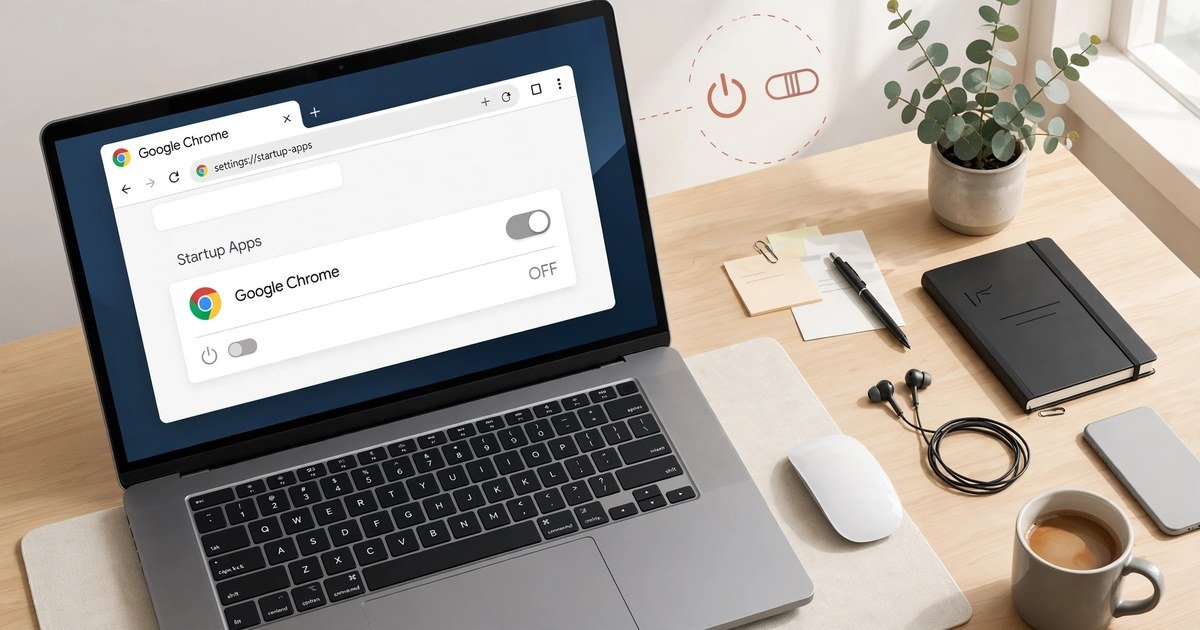
Start with the simplest cause. Windows 11 keeps a list of apps that launch at sign-in, and Chrome often ends up on it after an update or a fresh install.
Open Settings, then Apps, then Startup. Find Google Chrome in the list and switch its toggle off. Restart your PC to check the result. If Chrome no longer appears, you are done. If it still opens, move on to the next step, because something else is launching it.
You can reach the same list faster with Task Manager. Press Ctrl, Shift and Esc together, open the Startup apps tab, right-click Google Chrome and choose Disable. Both routes change the same setting, so use whichever you find easier.
The Task Scheduler Entry Most Guides Miss
Many guides stop at the Startup toggle, which is why the problem keeps coming back for so many people. Chrome can also be set to run through Windows Task Scheduler, and that entry survives the Startup toggle completely.
Open Task Scheduler from the Start menu search. In the left panel, choose Task Scheduler Library. Look through the list for entries named GoogleUpdateTaskMachine or anything that mentions Chrome. If you find a task set to run at log on, right-click it and choose Disable. Do not delete tasks you do not recognise, because some belong to other software. Disabling is safe and easy to reverse.
This step matters because Chrome’s own updater creates scheduled tasks during installation. They are meant to keep the browser up to date, but a misconfigured one can relaunch the browser itself at every sign-in. Disabling the log-on trigger stops the relaunch while leaving normal updates alone.
Check Chrome’s Own “Continue Running” Setting
The third hiding place is inside Chrome itself. Chrome has a setting called “Continue running background apps when Google Chrome is closed”. When it is on, Chrome keeps processes alive in the background, and Windows may restore the browser window at startup.
Open Chrome, go to Settings, then System. Switch off “Continue running background apps when Google Chrome is closed”. While you are there, check one more setting: under “On startup”, make sure Chrome is set to “Open the New Tab page” rather than “Continue where you left off”. The second option restores your old tabs, which can look exactly like Chrome opening itself.
If you changed your default search engine recently and the setting keeps reverting, a rogue extension may be involved. Our guide to how to change the default search engine in Chrome explains how to spot that problem. A clean extension list also helps here, since an unwanted extension can re-enable startup behaviour after you turn it off.
Still Opening? Check These Last Causes
If all three fixes are done and Chrome still launches, check two more things. First, look at the Startup folder itself. Press Windows key and R, type shell:startup and press Enter. If a Chrome shortcut sits in that folder, delete it. Second, check whether another program launches Chrome, such as a VPN client, a gaming launcher or a chat app set to open a browser page at sign-in. Disable that app’s startup entry too.
Windows 11 also restores open apps after a restart in some cases. Go to Settings, then Accounts, then Sign-in options, and switch off “Automatically save my restartable apps and restart them when I sign back in”. This stops Windows from reopening whatever was running when you shut down, Chrome included.
For other Windows 11 quirks, our guide to fixing WiFi that keeps disconnecting on a laptop covers another common startup and sleep related headache. And if Chrome itself misbehaves once it is open, our Chrome page not loading fix walks through the most common browser errors in order.
FAQs
Why does Chrome open on startup even though I turned it off in Startup apps?
Because the Startup apps toggle is only one of three launch routes. A scheduled task or Chrome’s own background setting can relaunch it. Check Task Scheduler and Chrome’s System settings as well.
Is it safe to disable GoogleUpdateTaskMachine in Task Scheduler?
Yes, disabling the log-on trigger is safe. Chrome still checks for updates when you open it. You are only stopping the task from launching the browser at sign-in, not removing the updater itself.
Will turning off background apps stop Chrome notifications?
It can reduce them, because Chrome no longer runs in the background after you close it. If you rely on web notifications from a specific site, test it after the change and re-enable the setting if you miss them.
Does this fix work on Windows 10 too?
The same three places exist in Windows 10, though the Settings menus look slightly different. The Startup tab in Task Manager and Chrome’s own System settings work the same way.
Conclusion
Chrome opening on startup in Windows 11 is annoying, but it is not a mystery. Check the Startup apps toggle, disable any log-on task in Task Scheduler, and switch off Chrome’s background setting. Do all three and your PC will boot to a clean desktop, with Chrome waiting quietly until you actually want it.