Your Android hotspot will not work if your phone has no mobile data to share, your carrier blocks tethering, or a setting on the phone stops the connection. The fix depends on the exact symptom, so match what you see to the section below and work through the steps in order. Most hotspots start working again in a few minutes, with no reset needed.
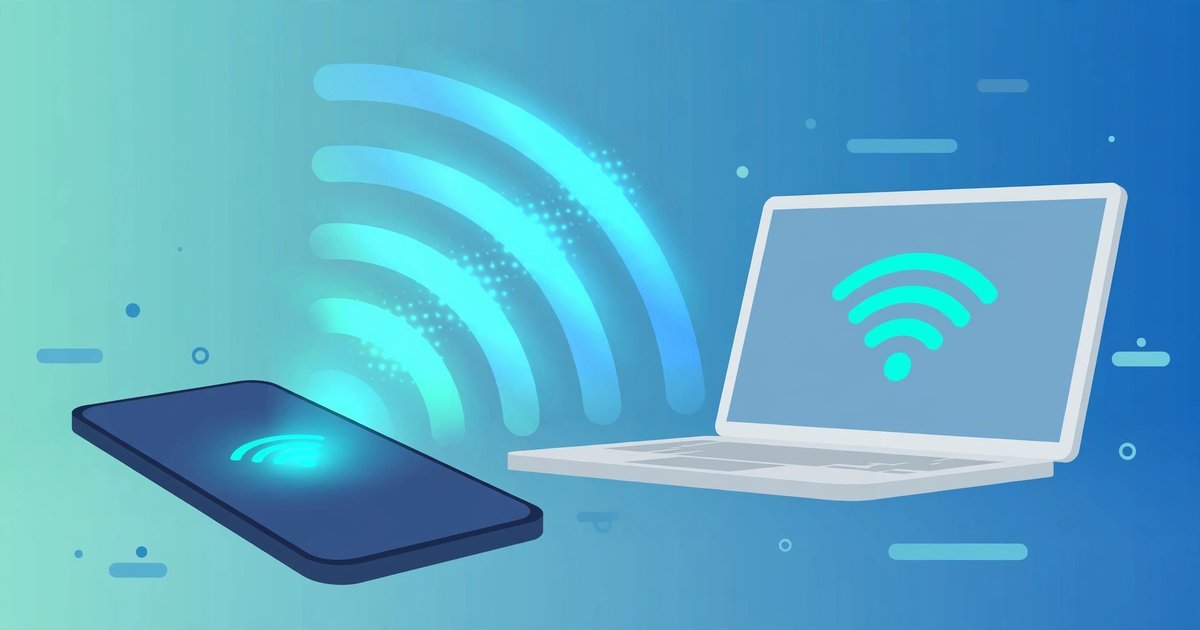
A mobile hotspot turns your phone into a small Wi-Fi router. It shares your mobile data connection with a laptop, tablet or another phone. When it fails, the fault sits in one of three places: the phone’s own mobile data, the carrier account, or the Wi-Fi link between the phone and the device. Check them in that order and you will find the cause fast.
First, check the phone’s own mobile data
Before you touch any hotspot setting, test the connection your phone is trying to share. Turn off Wi-Fi on the phone, then open a web page using mobile data only. If the page will not load, you have a mobile data problem, not a hotspot problem. Fix the data first, and the hotspot usually follows.
Also check Airplane Mode. It switches off every radio on the phone, including the hotspot radio. If it is on, turn it off and wait a few seconds for the signal to return. Check your signal strength too. One bar of 4G in a basement will not run a laptop, even if the hotspot switch turns on.
Finally, check whether you have data left. Many UK pay monthly plans include a separate hotspot or tethering allowance. Your phone can show full bars and still share nothing if that allowance is used up. Open your network’s app, such as My EE, My O2, Three or My Vodafone, and check your remaining data and hotspot allowance before you change anything else.
Hotspot won’t turn on
If the hotspot switch is greyed out, or it turns itself off the moment you switch it on, one of four things is usually behind it.
Mobile data is off
A hotspot shares mobile data, so it cannot start with mobile data switched off. Go to Settings, then Network and Internet, then Mobile network, and make sure Mobile data is on. On Samsung phones the path is Settings, then Connections, then Data usage, then Mobile data.
Data Saver is blocking it
Data Saver limits background mobile data, and on some phones it stops the hotspot from starting at all. Turn it off while you test: Settings, then Network and Internet, then Data Saver, then switch it off. If the hotspot starts, you found the cause. You can turn Data Saver back on later, but expect it to interfere again.
Your plan does not allow tethering
Some SIM-only and pay-as-you-go plans in the UK limit or charge extra for tethering, and some older plans block it completely. Google’s own Android help page warns that carriers can restrict tethering, and when the block sits on the carrier side, no setting on the phone will undo it. Check your plan details in your network’s app, or contact the network and ask whether tethering is included. If it is not, the fix is a plan change, not a phone setting.
Battery Saver switched it off
Battery Saver and aggressive power modes can stop the hotspot from starting or kill it minutes later. If the hotspot dies on its own, turn off Battery Saver and try again. Also look for the “Turn off hotspot automatically” setting in the hotspot menu. It switches the hotspot off after a set time with no devices connected, often ten minutes by default. Set it to a longer time, or turn it off, if your hotspot keeps disappearing.
Devices can’t connect
If the hotspot is on but your laptop or tablet cannot see it or cannot join it, the problem is the Wi-Fi link between the two devices.
Switch the band to 2.4 GHz
Most Android phones let you pick the Wi-Fi band the hotspot uses. The 5 GHz band is faster, but it has shorter range and older devices may not see it at all. The 2.4 GHz band reaches further and works with almost every device. If a laptop cannot find your hotspot name, open the hotspot settings, change the band to 2.4 GHz, and try again. This one change fixes more “can’t see the hotspot” cases than any other.
Check the name, password and security type
A mistyped password is the most common reason a device refuses to join. If you changed the hotspot name or password recently, the laptop may still be trying the old one. On the laptop, forget the network and join it fresh with the new password.
Security type matters too. Some older laptops and tablets cannot use WPA3, the newest security standard. If your phone offers WPA2-Personal or WPA2/WPA3 Transitional, pick one of those instead of WPA3 only. The connection stays secure, and older devices can join.
Also check that the hotspot is not hidden. If your phone has a “Hidden network” option, make sure it is off so the name broadcasts for other devices to find.
Check the connected device limit
Android phones limit how many devices can connect at once, usually five, eight or ten. If the limit is reached, a new device cannot join even with the right password. Open the hotspot settings and look at the connected devices list. Disconnect one you do not need, then try again.
Restart the hotspot toggle
Turn the hotspot off, wait ten seconds, then turn it back on. This forces Android to rebuild the Wi-Fi access point and hand out fresh addresses to connected devices. It clears temporary glitches that no setting change will fix.
Connected but no internet
This is the most frustrating symptom. The laptop says connected, yet no page loads. The cause is almost always on the phone side, not the laptop.
Your hotspot allowance is used up
On many UK plans the hotspot allowance runs out before the main data allowance does. EE, O2, Three and Vodafone all sell plans with separate tethering limits on some tariffs. When the allowance is spent, devices stay connected but nothing loads. Check the remaining allowance in your network’s app. If it is used up, you need a data add-on or a plan change.
Reset the APN to default
An APN, or Access Point Name, tells your phone how to reach your network. A wrong APN edit can stop the hotspot from passing data even while the phone itself browses fine. Reset it before you edit anything: search Settings for Access Point Names, open the screen, tap the three-dot menu and choose Reset to default. This repairs a half-finished edit in seconds.
Some guides tell you to add “dun” to the APN type. Only do this if your network tells you to. Some UK networks, such as Honest Mobile, publish this as their tethering fix. Others work fine without it. Adding it when you do not need it can break data completely, so treat it as a carrier instruction, not a general fix.
Turn off your VPN on the phone
A VPN on the phone can stop hotspot traffic from reaching the internet, because the hotspot shares the phone’s connection and the VPN reroutes it. Turn the VPN off and test the hotspot again. If it works, the VPN app is the cause. If you need a VPN while sharing, read what a VPN actually does to understand what it changes about your connection.
Forget the network on the laptop
Sometimes the fault sits on the connecting device. On the laptop, forget the hotspot network, then join it again from scratch. This clears a stale address or saved password that blocks traffic even though the connection looks fine. If the laptop keeps dropping Wi-Fi generally, our WiFi troubleshooting guide walks through the laptop-side fixes in order.
UK carrier settings worth checking
UK networks handle tethering differently, and the details matter when the phone settings all look right.
First, check whether tethering is included in your plan. Some budget SIM-only deals exclude it, and some pay-as-you-go bundles charge for it separately. Your network’s app shows this under your plan details. Second, check for a separate hotspot cap. A plan can offer unlimited phone data and still cap hotspot data at a fixed amount each month. Third, check for a carrier outage. If mobile data works on the phone but the hotspot fails everywhere, an outage on your network’s tethering service is possible. Your network’s status page or service checker will confirm it.
If you recently changed SIM, switched to eSIM, or changed plan, your APN may need a reset. Follow the reset steps above, then restart the phone. A restart after a SIM or plan change clears the old network settings that can block tethering.
When nothing else works
If you have worked through every section and the hotspot still fails, reset the phone’s network settings. This clears saved Wi-Fi networks, Bluetooth pairings and mobile data settings without touching your photos, apps or files. Go to Settings, then System, then Reset options, then Reset Wi-Fi, mobile and Bluetooth. Set the hotspot up again afterwards.
Also check for a software update. Go to Settings, then System, then System update, and install anything waiting. Carrier settings updates arrive the same way, and an old carrier profile can block tethering after a network change.
If the hotspot still will not start after a network reset and an update, contact your network. Ask them to check whether tethering is provisioned on your line. A line that was never provisioned for tethering will never share a connection, whatever you change on the phone.
FAQs
Why does my hotspot keep turning itself off?
Two settings cause this most often. The “Turn off hotspot automatically” timer switches the hotspot off after a set time with no devices connected, and Battery Saver can kill it to save power. Lengthen the timer and turn off Battery Saver, then test again.
Why can my laptop see the hotspot but not connect?
The usual causes are a wrong password, a security type the laptop does not support, or the connected device limit being reached. Switch the hotspot band to 2.4 GHz, change security to WPA2-Personal, forget the network on the laptop and join it fresh.
Why does my hotspot say connected but have no internet?
The phone is sharing a connection that has nothing to give. Either the phone’s own mobile data is not working, the hotspot allowance is used up, or the APN is wrong. Test mobile data on the phone first, check the allowance in your network’s app, then reset the APN to default.
Does 5G make a hotspot faster?
Yes, if your phone has a strong 5G signal, the hotspot can be faster than on 4G. But 5G drains the battery faster and heats the phone, which can make the hotspot drop. If speed matters less than stability, a 4G connection with a 2.4 GHz hotspot band is the steadier choice.
Can I use a hotspot while my phone is on Wi-Fi?
Not normally. The standard Android hotspot shares mobile data, not a Wi-Fi connection. A few Samsung and Pixel models offer Wi-Fi sharing, which passes a Wi-Fi connection through the hotspot, but most Android phones do not. Turn Wi-Fi off on the phone and use mobile data for the hotspot.
Conclusion
Start with the phone’s own mobile data, then check the plan, then work through the hotspot settings. Most Android hotspot problems come down to one of a short list: mobile data off, Data Saver on, the wrong Wi-Fi band, a used-up hotspot allowance, or a stale APN. Work through the symptom that matches yours, and the hotspot usually comes back within minutes. If it does not, a network settings reset and a call to your network will settle whether the fault is in the phone or on the line.