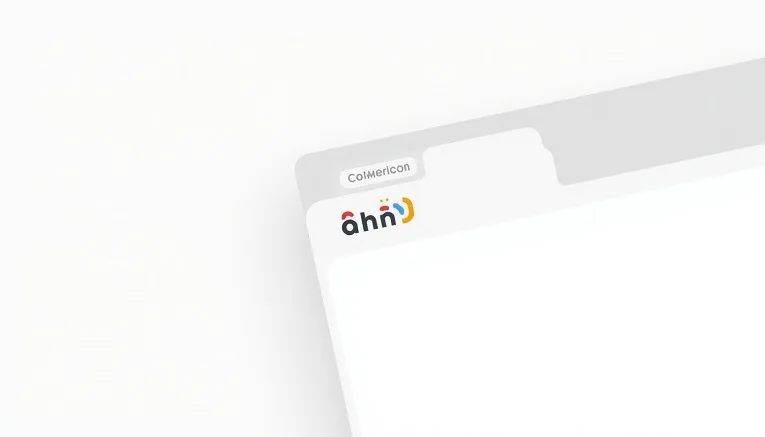
A favicon is the small icon that shows up in a browser tab, bookmarks list, and search results next to your website’s name. It’s tiny, but it’s one of the easiest things you can add to make a website look finished and trustworthy instead of unfinished.
What a favicon actually does
Favicons appear in several places: the browser tab itself, bookmark/favorites lists, browser history, and often next to your site’s listing in Google search results. Without one, browsers show a generic blank page icon, which subtly signals to visitors that a site might be unfinished or untrustworthy, even if the content itself is fine.
Why it matters more than its size suggests
When someone has ten browser tabs open, the favicon is often the only way they find your site again without reading every tab title. A clear, recognizable favicon also helps with brand recall in bookmarks and browsing history, small repeated exposure adds up over time.
What makes a good favicon
- Simple enough to read at a tiny size (browser tabs display it at roughly 16×16 pixels)
- A single bold shape, letter, or symbol rather than a detailed logo with fine text
- High contrast, since it needs to stay legible against both light and dark browser themes
- Consistent with your actual brand colors and logo, even if simplified
How to add a favicon on WordPress
- Go to Appearance → Customize → Site Identity (or Settings → General on newer WordPress versions).
- Look for Site Icon and upload a square image, ideally at least 512×512 pixels; WordPress will automatically resize it for different uses.
- Save, then check a few different browser tabs to confirm it’s showing correctly.
How to add a favicon on a custom-coded site
Upload your favicon file to your site’s root folder, then add this line inside the <head> section of your HTML:
<link rel="icon" type="image/png" href="/favicon.png">Modern browsers also support the older .ico format for broader compatibility, but a PNG works fine for virtually all current browsers.
Common favicon mistakes
- Using your full logo unchanged, small text and fine details disappear at favicon size
- Forgetting to clear your browser cache after adding one, old favicons can stick around visually even after the file is updated
- Uploading a non-square image, which some browsers will crop unpredictably
FAQs
Does a favicon affect SEO rankings?
It’s not a direct ranking factor, but Google does display favicons next to search results on mobile, and a missing or broken one can make a listing look less polished compared to competitors. If you’re auditing your site’s technical basics anyway, see our guide on Core Web Vitals explained for beginners for the bigger factors that affect how Google sees your site.
What file format should a favicon be?
PNG works well for modern browsers. The traditional .ico format is still worth including if you want maximum compatibility with older browsers and some bookmarking tools.
Why isn’t my new favicon showing up?
This is almost always a caching issue, either your browser or a caching plugin/CDN is still serving the old version. Clearing the cache and doing a hard refresh usually resolves it.