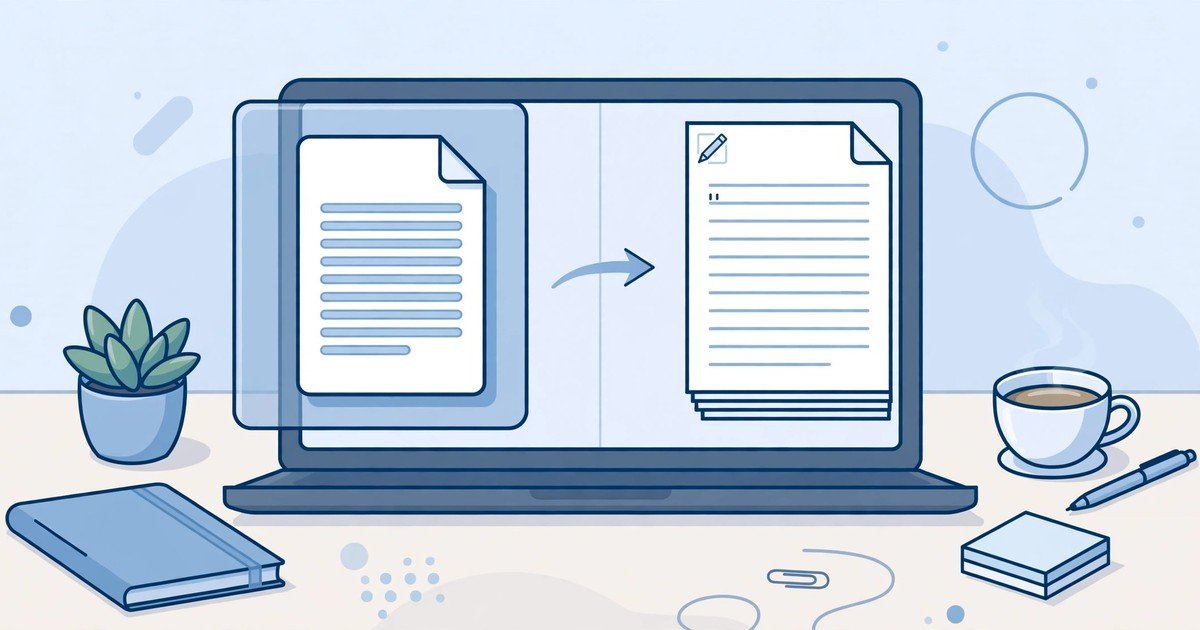
Need a free PDF to Word converter with no signup? Start with PDF24 Tools for ordinary text PDFs, or PDFgear if your PDF is a scan. Both work in the browser without an account, and both convert to an editable Word file in under a minute. This guide compares the best genuinely free options, their real limits, and the no-upload methods most guides skip.
The Short Answer: Which Free Converter to Pick First
If your PDF has selectable text, use PDF24 Tools. It states that no registration is needed, and it places no daily cap on use. If your PDF is a scan or a photo of a page, use PDFgear. It offers Advanced OCR without an account, and it accepts files up to 100 MB. If you already have Microsoft Word installed, you do not need a website at all. Open the PDF in Word and it converts it for you.
Most “free” converters are free only up to a point. The usual catches are a daily limit, a file size cap, OCR locked behind a paid plan, or a signup prompt that appears when you try to download. The tools below are ranked by how honest their free tier is, not by how loud their homepage is.
What “No Signup” Really Means
No signup should mean three things. You can upload a file, convert it, and download the Word document without creating an account or giving an email address. Some tools meet the first two and fail the third. They let you convert for free, then ask you to sign in before the download starts. Others offer a couple of free conversions and then show a paywall.
Check four things before you trust a converter with your file.
- Daily limit. Some free tiers allow two conversions a day. Others allow three tasks an hour. A few have no cap at all.
- File size cap. Free limits range from 15 MB to 100 MB, and some browser-based tools have no cap at all.
- OCR for scans. A normal converter cannot read a scanned page. Only OCR can turn the image of text into editable text, and many tools charge for it.
- File deletion. Good tools delete your file from their servers after a short time, usually within one hour. Check the privacy page before uploading anything sensitive.
The Best Free PDF to Word Converters Compared
| Tool | Signup needed? | Free limit | OCR for scans? | Where your file goes |
|---|---|---|---|---|
| PDF24 Tools | No | No daily cap stated | Yes, separate step | Their servers, deleted after a short time |
| PDFgear | No | 100 MB per file | Yes, Advanced OCR | Deleted after download, or 20 minutes after you leave |
| Smallpdf | No for first use | 2 conversions a day | Paid plan only | Their servers, deleted after 1 hour |
| Adobe Acrobat Online | Yes, free account | Limited free conversions | Yes | Adobe servers |
| Sejda | No | 3 tasks an hour | Yes | Their servers |
| Microsoft Word | No | No limit | No | Your computer |
| Google Docs | Google account | Files up to 2 MB for OCR | Yes | Your Google Drive |
| LibreOffice Writer | No | No limit | No | Your computer |
PDF24 Tools: The Best Truly Free Option
PDF24 Tools is the simplest pick for a normal text PDF. It states that no installation or registration is required, and it does not set a daily limit on use. The flow is three steps: select the file, start the conversion, and save the Word file. Files are removed from its servers after a short time.
The tradeoff is that OCR for scanned PDFs is a separate step rather than part of the main converter. If your document is a scan, PDFgear is the better choice. PDF24 also runs on advertising, so expect banner ads around the tool. They do not affect the conversion itself.
PDFgear: The Best Free OCR for Scanned PDFs
A scanned PDF is a picture of text, not text itself. Most free converters return a Word file with an image in it, which you cannot edit. PDFgear is different. Its online tool states that no email or account is needed, it accepts a single PDF up to 100 MB, and its Advanced OCR mode reads scanned pages and turns them into editable text.
PDFgear also states that files are deleted immediately after download, or 20 minutes after you leave the site. That is one of the clearest deletion promises among free tools. If your document is a scanned contract, a photographed form, or an old report saved as images, start here.
Smallpdf and Adobe: Good, but With Limits
Smallpdf has one of the cleanest interfaces of any online converter, and it needs no account for a first conversion. The free tier allows two conversions a day, and OCR for scanned PDFs is a Pro feature. Files are deleted from its servers an hour after processing. It is a good choice for a one-off conversion, but the daily limit runs out fast if you convert often.
Adobe Acrobat Online gives the most accurate formatting of any web tool, because it is built by the company behind the PDF format. The catch is the free tier. Guest users get a limited number of conversions, and you may be asked to sign in to download after the first one. If layout accuracy matters more than anything else, and you only convert occasionally, it is worth using. For regular use, the free tier is too thin.
Sejda: A Generous Middle Ground
Sejda allows three free tasks an hour without an account, and it includes OCR. Its formatting is strong, and it handles tables better than most free tools. The hourly limit resets quickly, so it suits someone converting a small batch of files across a morning. Check its privacy page before uploading anything confidential, as with any server-based tool.
No Upload at All: Microsoft Word and LibreOffice
The most private option is not a website at all. If you have Microsoft Word installed, open the PDF from inside Word. Go to File, then Open, and select the PDF. Word converts it into an editable document with no daily limit and no upload. Microsoft is honest about the limits: the result works best on documents that are mostly text, and tables with wide cell spacing, page colours, footnotes that run across pages, and tracked changes may not convert cleanly. For letters, contracts, and reports, the result is usually editable with little cleanup.
LibreOffice Writer is the free alternative. It opens PDFs and lets you save them as Word files, fully offline. It has no OCR, so it cannot read scanned pages, but for text PDFs it costs nothing and sends nothing to a server. If privacy is your main concern, start with one of these two.
Google Docs: Free OCR for Small Scanned Files
Google Docs offers free OCR, but with strict limits. Upload the PDF to Google Drive, right-click it, and choose Open with Google Docs. Google reads the scanned text and opens it as an editable document, which you can then download as a Word file. Google states that OCR works only on files of 2 MB or less, and the text should be at least 10 pixels high and the right way up. It is a useful trick for a single short scan, but it is not a tool for large scanned documents.
Privacy: What Happens to the File You Upload
Every online converter copies your file to a server. That is fine for a public report or a school handout, but think twice before uploading a contract, a medical letter, or anything with bank details. A few rules keep you safe.
- Prefer a tool that states a deletion time. One hour is the common promise. Avoid tools that do not state one.
- Never upload a file with passwords, bank details, or identity documents to a free converter. Use Word or LibreOffice instead.
- Watch for fake download buttons. Free converter sites are full of ads that mimic the real download link. The real button is usually smaller and appears after the conversion finishes. If a site asks you to install software to download your file, close it. That is a classic sign of a scam, and the same caution applies to suspicious emails, which is why knowing how to spot a phishing email is worth your time.
- Delete the original from the site if it offers a delete option. Do not rely on automatic deletion alone for sensitive files.
How to Convert a PDF to Word in 3 Steps
The steps are the same on almost every converter.
- Pick the right tool for your file. Text PDF: PDF24 Tools. Scanned PDF: PDFgear. Private file: Microsoft Word or LibreOffice.
- Upload and convert. Drag the PDF onto the page or click to browse, then press convert. A normal document takes a few seconds.
- Download and check. Save the .docx file, open it, and check the headings, tables, and page breaks. Fix any layout issues before you send it on.
If the result looks wrong, try a different tool before blaming the file. Converters handle complex layouts differently, and a table that breaks in one tool may convert cleanly in another.
FAQs
Can I convert a PDF to Word for free without signing up?
Yes. PDF24 Tools and PDFgear both convert PDFs to Word without an account. PDF24 has no stated daily cap, while PDFgear accepts files up to 100 MB and includes OCR for scanned PDFs. Microsoft Word and LibreOffice also convert PDFs with no signup and no upload.
Why does my converted Word file look different from the PDF?
A PDF stores fixed positions on a page, while Word stores flowing text. Complex layouts, unusual fonts, and tables with wide spacing often shift during conversion. Simple documents convert cleanly. For complex ones, try Adobe Acrobat Online for the best formatting, or accept a little cleanup in Word.
Can a free converter read a scanned PDF?
Only if it includes OCR. PDFgear offers Advanced OCR without an account, and Google Docs offers free OCR for files under 2 MB. Smallpdf and iLovePDF keep OCR behind their paid plans. Without OCR, a scanned PDF converts into a Word file containing an image, not editable text.
Is it safe to upload a PDF to a free converter?
It is safe for ordinary documents, as long as the tool states when it deletes your file. Most promise deletion within an hour. Do not upload contracts, medical letters, or anything with bank details or passwords. For those, use Word or LibreOffice on your own computer.
What is the file size limit for free PDF to Word converters?
It depends on the tool. PDFgear accepts up to 100 MB, some smaller tools cap free files at around 15 MB, and browser-based tools that process the file on your device have no server limit at all. If your file is large, check the limit before you upload, or use Word or LibreOffice, which have no limit.
Conclusion
The best free PDF to Word converter with no signup depends on your file. For a normal text PDF, PDF24 Tools is the simplest free choice, with no account and no daily cap. For a scanned PDF, PDFgear is the best free option, because its Advanced OCR works without a signup. For a private document, skip websites entirely and open the PDF in Microsoft Word or LibreOffice. Whichever tool you pick, check its daily limit, its file size cap, and its deletion promise before you upload, and your conversion will be quick, free, and safe.
Converting files is only half the job. If you also work with images, our guide on how to save WebP as JPG on Windows 11 covers the same no-new-software approach, and how to open WebP files on Windows explains the format itself. For photos from an iPhone, see our guide to convert HEIC to JPG without extra software.